Crop images
Crop a precise region from an image using the preview, original pixel coordinates or keyboard controls. Download only the selected area.
Processed in your browser. Your files stay on your device.
Drop your files here
or
JPG · PNG · WebPFile limit: 10 MiB
How to use this tool
- Select JPG, PNG or static WebP images.
- Drag the region, enter pixel dimensions or use arrow keys to adjust it.
- Review the result and download it before clearing the workspace.
When this tool helps
Crop when you need to remove empty margins or focus on one part of an image. Cropping keeps a selected region; resizing changes the dimensions of the whole image.
Choose the right settings
A practical example
Keep the center of the illustration
- Use the 480 × 300 example image.
- Set left to 80, top to 40, width to 320 and height to 220 pixels.
- Choose PNG and crop. Compare the margins and the position of the book.
The actual output below is 320 × 220 pixels. It preserves the selected part without stretching the book. Keep the source if you may need another region later.
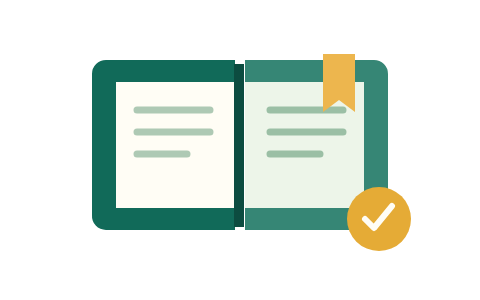
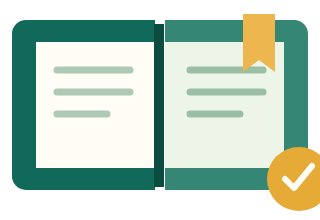
These examples use our own test illustration. The checkerboard shows transparent areas; it is not part of the image.
Common mistakes
Tool limits
One image up to 10 MiB and 20 million pixels. Static JPG, PNG and WebP only.
Frequently asked questions
Are crop dimensions measured on the preview?
Coordinates and sizes refer to the original oriented image, even when the preview is smaller. Arrow keys move the region; Shift makes larger steps.
Are my files uploaded?
This tool processes files in your browser. Files are not uploaded. Aggregate tool-event counts contain no file contents or names.