Resize images
Resize images to a useful width or height before publishing. Keep proportions or specify both dimensions in original image pixels.
Processed in your browser. Your files stay on your device.
Drop your files here
or
JPG · PNG · WebPFile limit: 10 MiB
How to use this tool
- Select JPG, PNG or static WebP images.
- Enter the output dimensions and choose whether to keep proportions.
- Review the result and download it before clearing the workspace.
When this tool helps
Resize a photo when the destination specifies a width or when the original is much larger than its display area. The width and height describe pixels; the file size also depends on format and quality.
Choose the right settings
A practical example
Reduce 480 × 300 to 240 × 150
- Select the example illustration and choose PNG output.
- Keep the aspect ratio enabled and set the width to 240 pixels.
- Download the copy and check that its height is 150 pixels.
The two images below are the original-size illustration and the actual resized output. The smaller image has fewer pixels, while retaining the same proportions.
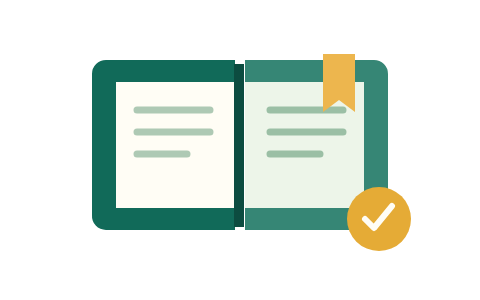
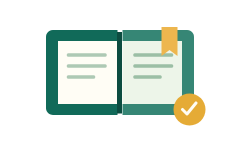
These examples use our own test illustration. The checkerboard shows transparent areas; it is not part of the image.
Common mistakes
Tool limits
Up to 10 MiB and 20 million pixels per image; 20 files and 50 MiB per batch. Static JPG, PNG and WebP only.
Frequently asked questions
Does resizing improve a blurry photo?
Increasing dimensions adds pixels but cannot recover detail absent from the original. EXIF orientation is applied before resizing.
Are my files uploaded?
This tool processes files in your browser. Files are not uploaded. Aggregate tool-event counts contain no file contents or names.